iOS push notification has evolved greatly over the years, from a simple push with a alert string, to the now sophisticated system involving custom actions, localized string and background mode.
Reading the documentations here, here and here… provided clues everywhere on how it works.
This post is to explain what happens when a push reaches a device.
Which delegate method is called?
That is the question to answer when a push reaches a device.
application:didReceiveRemoteNotification:- This is the original API when push notification service is launched (iOS 3.0), but now it is superceded by application:didReceiveRemoteNotification:fetchCompletionHandler: (iOS 7.0).
application:handleActionWithIdentifier:forRemoteNotification:completionHandler:- This is for providing custom action that goes with a push notification (iOS 8.0). An advanced topic we shelf off for now.
You enable with content-available=1. But, it is WRONG to disable with content-available=0. To disable, you have to REMOVE the key in the payload.
Playing out the Scenarios
With content-availableenabled:
App is in Foreground
No system alert shown
application:didReceiveRemoteNotification:fetchCompletionHandler: is called
App is in Background
System alert is shown
application:didReceiveRemoteNotification:fetchCompletionHandler: is called
App is in Suspended
App state changes to Background
System alert is shown
application:didReceiveRemoteNotification:fetchCompletionHandler: is called
App is Not Running because killed by user
System alert is shown
No callback is called
With content-availabledisabled (key removed):
App is in Foreground
No system alert shown
application:didReceiveRemoteNotification:fetchCompletionHandler: is called
App is in Background or Suspended
System alert is shown
No method is called, but when user tap on the push and the app is opened
application:didReceiveRemoteNotification:fetchCompletionHandler:is called
App is in Not Running
System alert is shown
No method is called, but when user tap on the push and the app is opened
application:didFinishLaunchingWithOptions: then application:didReceiveRemoteNotification:fetchCompletionHandler:are both called
Conclusion
If app is in Foreground, the system will not show the alert and it is up to the app to display some UI after application:didReceiveRemoteNotification:fetchCompletionHandler: is called.
Enabling content-availablewill put the app in Background (unless app was killed by user) and then call application:didReceiveRemoteNotification:fetchCompletionHandler:immediately.
Whereas without content-available, app will remain in Suspended, and application:didReceiveRemoteNotification:fetchCompletionHandler: is delayed until the app is opened.
Lastly, application:didFinishLaunchingWithOptions: is called only when the app is Not Running, and the user tap on the push alert. It will subsequently call application:didReceiveRemoteNotification:fetchCompletionHandler:. Therefore, it is better to handle the push in application:didReceiveRemoteNotification:fetchCompletionHandler:, as that covers all scenarios.
I’ve seen too many developers writing code like this below,
func neverDoThis()
{
 let fuglyCode = true
 if (fuglyCode == true)
 {
  print("This is atrocious")
 }
}
If I see the type of code above, I judge real hard.🤔 I assume that he/she has never read the API guideline/documentation or anyone’s Swift code before. Let’s take a look at how Apple engineers at WWDC would write.
// How Swift engineers would write
func swiftyWay() {
 let isLegit = true
 if isLegit {
  print("This is fine")
 }
}
If you spot anyone using the atrocious way, smack him in the head (gently)
If you’ve been around, make sure you understand the differences between,
asas!as?
trytry!try?
IntInt!Int?
If you don’t know what the heck you are doing and you resort to those 😡s on the left side of Xcode, you are bound to see that, “Found unexpected nil” message. Stop being passive. Move your butt and understand what they mean. Especially for those who took beginner courses on Udemy (including myself), you need to figure out your own.
My friend asked me to review his code yesterday. One function had 50 lines. It covered the entire Xcode black screen. I was like, this shit isn’t going anywhere. I told him, “I don’t want to read your code because your code is fucking ugly”. I told him to break it into pieces and modularize. The truth hurts but he is my friend and I needed to be real and clear. No bullshit trying to please him.
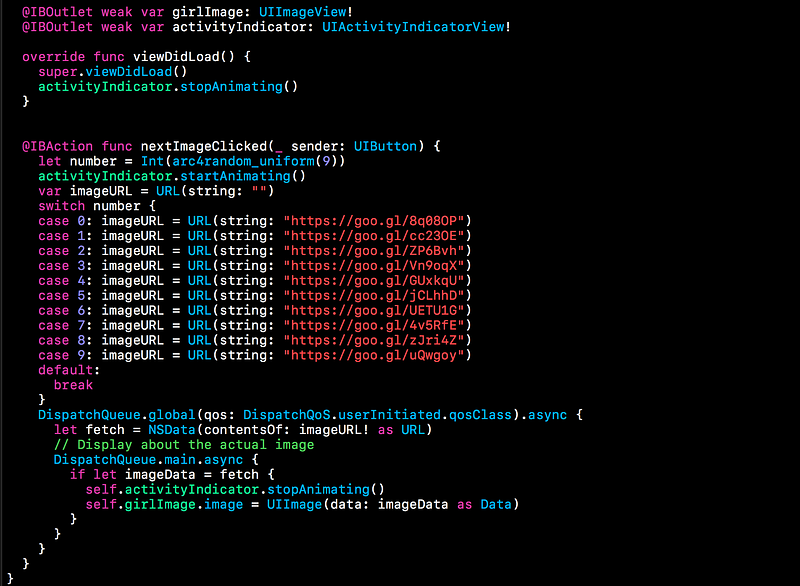
For example, instead of writing something like this, although the below is not too crazy,
An example of GCD Code
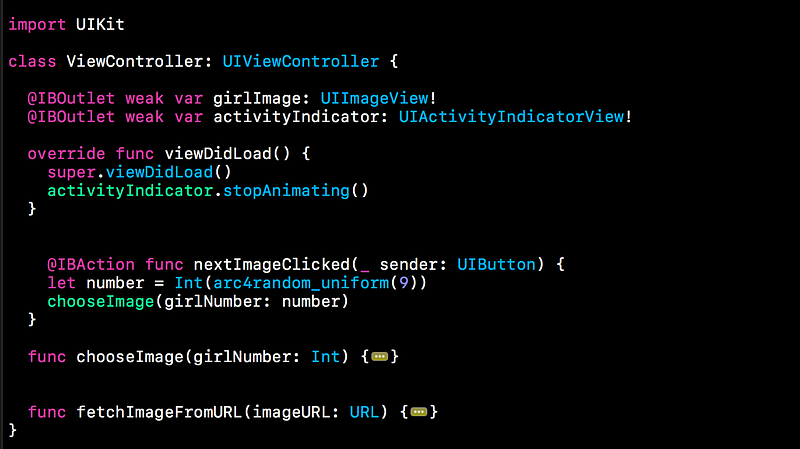
Break it down into pieces.
Nice and Neat
4. UI Main Thread, Networking Background Thread
The concept of mult-threatding (a group of tasks done by CPU) is daunting. I don’t blame you. I don’t have a computer engineering background, and I still don’t know much of it.
I wrote two articles why you need to use the main thread for UI updates and the background threads for networking. So, I will skip this part.
Resources :Intro to Grand Dispatch Central with Bob (Medium) UI and Networking like a Boss in Swift 3 (Part 2) (Medium)
5. Don’t make Swift file over 200 lines
I made this mistake when I first learned how to make apps. I made a file with more than 800 lines which inlcude multiple UIViewController classes and models. It’s something that I wouldn’t repeat. Once you hack, you never go back. Of course, if a file is JSON or content based, it may contain more than thousands of lines.
I’m not going to explain all these concepts in detail but I will tell you what you could study and make your entire app nice and clean.
There are a couple ways to fundamentally reduce the number of lines and still be readable. You can make resuable code using Protocol Oriented Programming with UITableVIew and UICollectionView. If you are using MVC which stands for Massive View Controller you may want to find out how MVVM works.
Resources : Extension Lesson (YouTube) Intro to Protocol Oriented Programming (Medium) Protocol Oriented MVVM in Swift 2.0 (Natasha) Protocol Oriented Views (Natasha) Protocol Oriented TableView and CollectionView (Basem Emara)
6. Never hard type anything. Enums, Enums, Enums
Have you realized that the reason we can auto-complete a lot of properties in Xcode is due to Enums? It may seem obviously, but maybe not so for beginners.
The last thing you want to do in programming is hardcore typing rather than picking and choosing. For example, when you make UIAlertViewStyle, UIKit engineers created,
public enum UIAlertViewStyle : Int {
 case `default`
 case secureTextInput
 case plainTextInput
 case loginAndPasswordInput
}
Can you ever imagine typing each case? I can’t because I don’t think about it since it’s a must. Do not hard code not only for yourself, but for the sake of grey hair of your teammates.
According to the Swift API guideline, there were a couple standards developers should go by.
1. Convention > Uniqueness
Every programming language has its own character and style. Although subjective, the convention can be found through reading the Swift documentation and Swift files written in open-sourced projects. Again, I highly recommend you to take a look what it feel to write with a Swifty manner. Instead giving you examples, I will provide you with resources down below.
2. Expressive > Impressive
There are some dudes who like to make things twisted so that they feel a sense of superiority since others can’t read. This is bullshit. No one should ever do this. It’s all about effective communication with one another. Yes, code is a way humans talk to computers. But, it’s also between us, developers and geeks. Please don’t be that arrogant dude who tries to use Shakespearish words to impress. No need.
3. Clarity > Brevity
Swift developers ask us to be clear with names so that when we come back three weeks later, we are good. However, there is no black and white. It’s the balance between using descriptive names and reducing the number of lines overall at the same.
“Brevity itself is not a worthwhile goal. Concise code is a consequence of using contextual cues” — Doug Gregor, Swift Engineer
// Too brief & Lack of context
let a = "A"
let b = "B"
If I were to read the code above, I would be confused what exactly a and b stand for throughout. So, I have to go all the way to find what they are. Why can’t we be a little more descriptive by writing,
// How I would do it
let capLetterA = "A"
let capLetterB = "B"
Resources : Swift 3 Styling Guide Lesson (YouTube) Swift API Design Guidelines at WWDC (YouTube)
8. Use Guard
The Guard statement is not only useful for unwrapping optioanls but also for replacing if-else statements and provide an early exit out of the function using break or using return. It allows anyone to identify what would happen if the condition isn’t met without scrolling all the way to find that else block. Let’s take a look at a real-world example.
let name = "Bobby"
func checkName() {
  // Early Check
  guard name == "Bob" else {
  print("You ain't Bob")
  return
 }
 // I can do anything I want without seeing the else block.
 // So much freedom
 // You don't even need to read this
 // Why are you even reading this
 // Now, you may leave. I'm not going to say anything important
 // In this block of code
// Lol... you still here?
print("You Good, bro")
}
If you don’t understand what it means to unwrap optionals and have an early exit, check the resources down below.
I do not code in Objective C, so I try to avoid it as much as I can both mentally and physically. Unless you are interacting with Objective-C APIs, stay away from using NS even if Swift automatically converts some Objective-C types to Swift types, and some Swift types to Objective-C types.
It is true that Swift is inspired by Objective-C and many other languages, however, it is an independent language. I’m not sure how much the conversion slows down, but it’s recommended Swift developers avoid if possible. You can take a look at the alternatives since Swift provide its own native libraries and APIs.
If you are using Swift 3, don’t use NS unless you have to
“Historical Note: If you’re wondering why so many of the classes you encounter have an NS prefix, it’s because of the past history of Cocoa and Cocoa Touch. Cocoa began life as the collected frameworks used to build apps for the NeXTStep operating system. When Apple purchased NeXT back in 1996, much of NeXTStep was incorporated into OS X, including the existing class names. Cocoa Touch was introduced as the iOS equivalent of Cocoa; some classes are available in both Cocoa and Cocoa Touch, though there are also a large number of classes unique to each platform. Two-letter prefixes like NS and UI (for User Interface elements on iOS) are reserved for use by Apple”. — Apple
10. Don’t Rely on Segues
Beginners tend to make too many Segues to a point when storyboards look like a spider web. Once you go beyond a certain threshold, it becomes unmanageable and hard to track each viewcontroller. Therefore, use Delegate/NSNotification to send data. Use multiple storyboards instead of one. If you are comfortable with Delegate, you can start using RxSwift or ReactiveCocoaso to pass data or send notifications with just a couple lines of code. This topic is a bit too broad, so I will break it down into piece in later with YouTube videos and Medium articles.
Resources: Pass Data between ViewController with Delegate (YouTube)
Hello All , As we Know In every iOS App there is form. In which Multiple fields are present. With ought Forms our app is not become complete one of example is sign up form. So every time we need to design it,Use all delegate methods, Picker view , Textfields , validation blah.. blah.. blah.. It takes too much time to developed the form For That When I roaming around I found one Library Which Which will do all the stuff related to Form
This will do All the Stuff Which We Required to develop The form.
I made 1 demo to use the form you can get it from this Link
Hello All , As we know getting device related data making so much importance in our ios project for that I made one framework which will helpful in all. ForDownload DeviceInfoFramework Framework Please go to ThisLink. and For Adding This Framework Please Check same Steps As Shown inThis Post I had Implanted use of Some methods,
iPad ===> Check is device iPad
iPhone===> Check is device iPhone
iPhone4s===> Check is device iphone 4s
iPhone5or5s===> Check is device iphone 5s or 5
iPhone6Plusor6sPlus===> Check is device iphone 6Plus or 6sPlus
iPhone6or6s===> Check is device iphone 6 or 6s
DeviceName===> Get Device Name
DeviceSystemName===> Get Device System Name
DeviceUUID===> Get Device UUID
AppBuildNumber===> Get Build Number
IS_IOS8===> Check Device OS Is Greater than iOS8
IS_IOS9===> Check Device OS Is Greater than iOS8
IS_IOS10===> Check Device OS Is Greater than iOS8
SCREEN_WIDTH===> Get Screen Width
SCREEN_HEIGHT===> Get Screen height
iS_Landscape===> Check is device Landscape Mode
iS_Portrait===> Check is device Portrait Mode
UIColorFromHEX(rgbValue)===> Get UIColor from HEX Code
[UIDeviceHardware uniqueDeviceToken] => Get Unique Device Token Which Comes With help of KeychainAccess Helpful with Push Notification.
Generally people don't remember the formats string while they use NSDateFormatter. This reference will provide a easy to remember quick guides.
y = year
Y = Year (This year designation is used in ISO year-week calendar as defined by ISO 8601, but can be used in non-Gregorian based calendar systems where week date processing is desired. May not always be the same value as calendar year.)
Q = quarter
M = month
w = week of year
W = week of month
d = day of the month
D = day of year
E = day of week
a = period (AM or PM)
h = hour (1-12)
H = hour (0-23)
m = minute
s = second
z = zone
Commonly used NSDateFormat String -
@"E, d M y" - Mon, 1 5 2015
@"EE, dd MM yy" - Mon, 01 05 15
@"EEE, ddd MMM yyy" - Mon, 001 May 2015
@"EEEE, dddd MMMM yyyy - Monday, 0001 May 2015
@"dd-MM-yyyy" - 01-05- 2015
@"dd-MM-yyyy HH:mm:ss" - 01-05- 2015 15:10:10
@"dd-MM-yyyy hh:mm:ss a" - 01-05- 2015 10:15:12 AM